Discover how to effectively manage your Steam game library by learning the various methods to remove games. Whether you are a busy professional balancing work family and gaming or simply looking to optimize your PC's performance understanding how to properly uninstall or permanently delete titles is crucial. This comprehensive guide provides step-by-step instructions for freeing up valuable storage space improving system speed and decluttering your digital collection. We cover everything from temporary uninstalls to permanent account removal considerations ensuring you have the knowledge to maintain an efficient gaming setup. Perfect for US gamers averaging 36 years old who value smart resource management and a seamless gaming experience in 2026. Stay current without the hype and make your gaming life simpler.
How exactly do I uninstall a game from my Steam library?
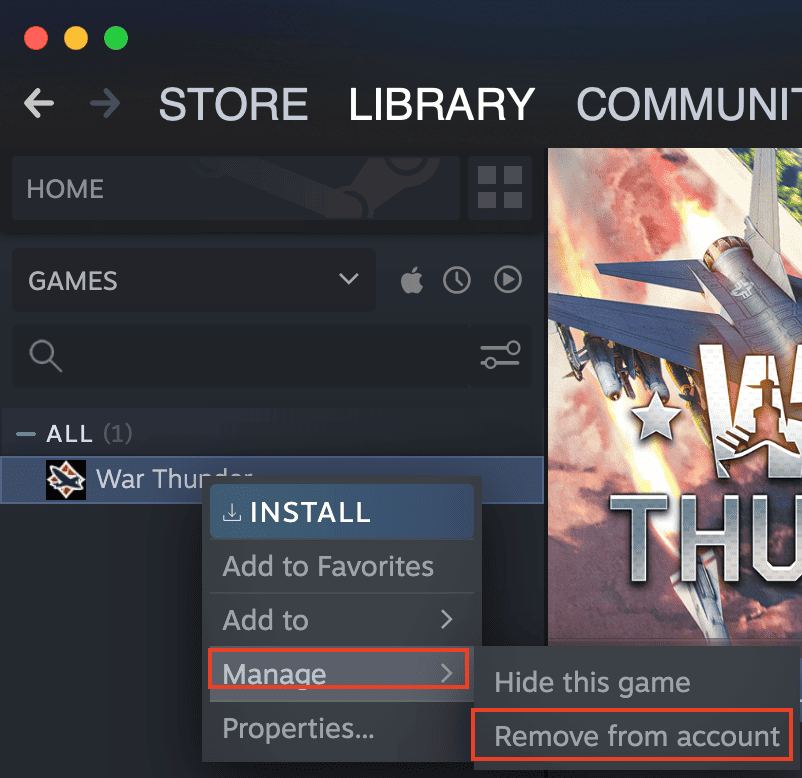
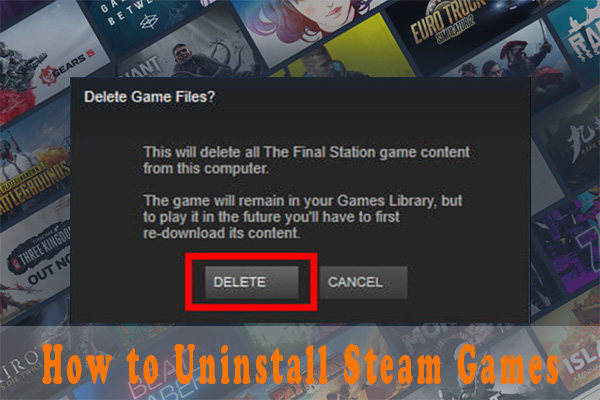
Uninstalling a game from your Steam library is straightforward and can be done in a few simple steps to free up storage space. First, open your Steam client and navigate to your 'Library'. Right-click on the game you wish to remove from your PC. From the context menu that appears, hover over 'Manage' and then select 'Uninstall'. Steam will prompt you with a confirmation dialog, asking if you are sure you want to uninstall the game. Click 'Uninstall' again to proceed, and Steam will begin removing the game files from your computer's hard drive. This process usually only takes a moment, depending on the game's size and your system's speed.
What's the difference between uninstalling and permanently removing a game from my Steam account?
The distinction between uninstalling and permanently removing a game from your Steam account is crucial for gamers. Uninstalling a game simply removes its local files from your computer's hard drive, freeing up storage space. The game still remains in your Steam library, allowing you to reinstall it anytime you wish, retaining your ownership and progress in the cloud. Permanently removing a game, however, is a more drastic measure. This action removes the game from your Steam library entirely and revokes your ownership, making it appear as if you never purchased it. This is typically done through Steam Support and is irreversible, meaning you would have to repurchase the game if you ever wanted to play it again.
Will uninstalling a Steam game delete my save files and progress?
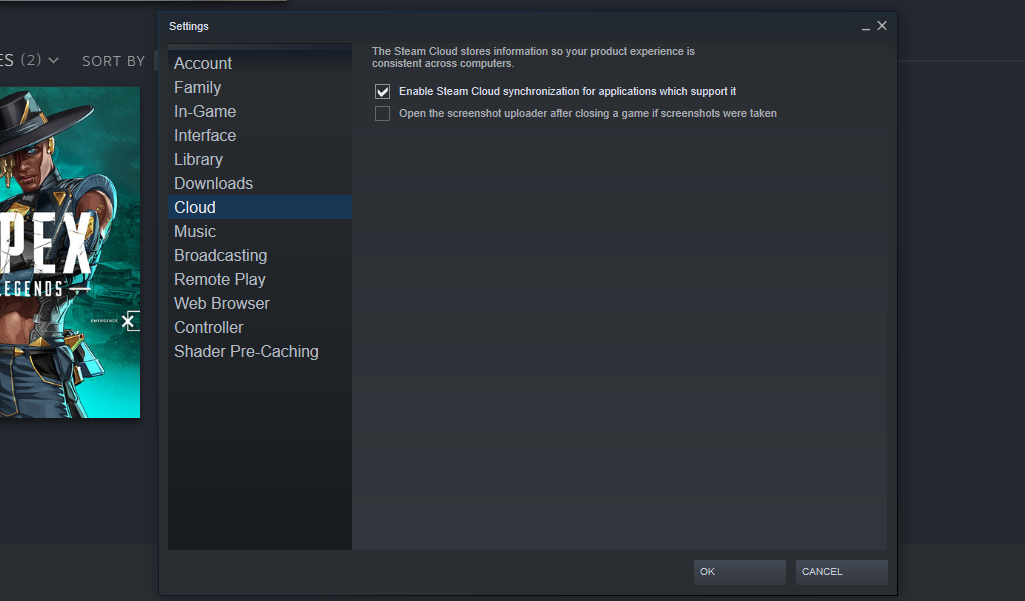
Generally, uninstalling a Steam game will not delete your save files and progress, especially for games that utilize Steam Cloud Sync. Steam Cloud automatically backs up your game saves to Valve's servers, allowing you to pick up where you left off even if you reinstall the game on a different PC or after a fresh operating system installation. However, some older games or titles that do not support Steam Cloud Sync might store save files locally. For these specific cases, it is always a good practice to manually back up your save files before uninstalling, usually found in your 'Documents' folder or the game's installation directory, just to be safe and avoid any potential loss of progress.
Can I reinstall a Steam game after I've uninstalled it?
Absolutely, you can reinstall any Steam game you have previously uninstalled, as long as it remains in your Steam library. Uninstalling a game only removes the local files from your hard drive; it does not remove your ownership of the game from your account. To reinstall, simply open your Steam client, navigate to your 'Library', and locate the game. Games that are uninstalled will typically appear grayed out. Right-click on the game and select 'Install'. Steam will then download and install the game back onto your system. This flexibility is a key feature of Steam, allowing gamers to manage their storage without losing access to their purchased titles.
What should I do if a Steam game won't uninstall properly?
If a Steam game won't uninstall properly, there are a few troubleshooting steps you can take to resolve the issue. First, try uninstalling directly through Steam again. If that fails, restart your PC and attempt the uninstall once more. Sometimes, background processes can interfere. You can also try uninstalling the game through your Windows 'Add or Remove Programs' settings (or macOS equivalent). If the problem persists, manually deleting the game's folder from your SteamApps common directory, followed by verifying the integrity of game files for any remaining associated data through Steam, can often clear up stubborn uninstallation issues. As a last resort, contacting Steam Support might be necessary.
Why is it important for gamers to regularly manage their Steam library by removing games?
Regularly managing your Steam library by removing games is important for several key reasons, especially for busy gamers who want optimal performance and a clutter-free experience. The most immediate benefit is freeing up valuable disk space on your PC, which can significantly improve overall system performance and load times. An overloaded drive can slow down your entire computer. Additionally, a streamlined library makes it easier to find and launch the games you actually want to play, rather than sifting through dozens of titles you've finished or lost interest in. It's about optimizing your digital real estate, much like tidying your physical space, to enhance your gaming life.
Are there any alternatives to completely removing Steam games for saving space?
Yes, there are excellent alternatives to completely removing Steam games if your primary goal is to save space without fully uninstalling. One popular option is to move games to a different drive, perhaps a larger HDD if your main SSD is full. Steam offers a built-in function to do this: simply right-click the game, go to 'Properties', then 'Local Files', and select 'Move Install Folder'. Another strategy is to only uninstall specific components or DLC if the game allows, which can free up some space without removing the core game. Utilizing Steam's Family Sharing feature also allows others to play your games without needing duplicate installations on your drive, indirectly managing space.
Hey fellow gamers! Ever stare at your Steam library, a sprawling digital monument to countless hours and forgotten worlds, and feel a twinge of overwhelm? You are not alone. With game sizes ballooning faster than a raid boss's health pool, managing your digital real estate has become a core part of the modern gaming experience. For many US gamers, balancing a passion for interactive entertainment with work, family, and life responsibilities means every gigabyte, every moment of performance, and every ounce of organization counts. We value relaxation and fun, but also efficient systems that let us jump into a quick social match or continue a skill-building campaign without technical headaches or slow load times.
As of 2026, over 87% of US gamers play regularly, often clocking in 10+ hours a week, and a significant portion of that happens on PC. While mobile gaming dominates casual play, the PC remains king for many deeper experiences. But what happens when your hard drive screams for mercy, or your game list becomes so long it feels like another chore? The answer lies in mastering how to remove Steam games. This guide is your trusted friend, here to walk you through everything you need to know about decluttering your Steam library, optimizing your PC, and ensuring your gaming setup works for you, not against you. Let's dive in and take back control of your digital world, addressing common pain points like performance problems and finding space for those exciting new releases without blowing your budget on constant hardware upgrades.
Can You Remove Steam Games From Your PC? Absolutely, And It's Easier Than You Think!
Yes, you can absolutely remove Steam games from your PC. This is a fundamental feature of the Steam platform designed to give players control over their installed content and local storage. When you remove a game, you're essentially uninstalling it, deleting the game files from your computer's hard drive. This action frees up valuable disk space and can improve your system's overall performance, especially if your drive was getting full. It's a key part of maintaining an efficient gaming rig in 2026, where even mid-range PCs often struggle with storage constraints.
Removing a game from your PC does not mean you lose ownership of it. The game remains linked to your Steam account, appearing in your library, ready to be reinstalled whenever you wish. This flexibility is crucial for gamers who might want to revisit old favorites or simply need to make room for the latest trending titles. It’s about smart management, not permanent goodbyes. We’ll explore the various methods and implications of doing so in detail, ensuring you understand every step.
How Do I Uninstall a Steam Game to Free Up Space?
Uninstalling a Steam game to free up space is a straightforward process, but it's important to do it correctly to avoid orphaned files or other issues. This is the primary method for most gamers looking to clean house.
Here's a step-by-step guide:
- Open Your Steam Client: Launch the Steam application on your computer.
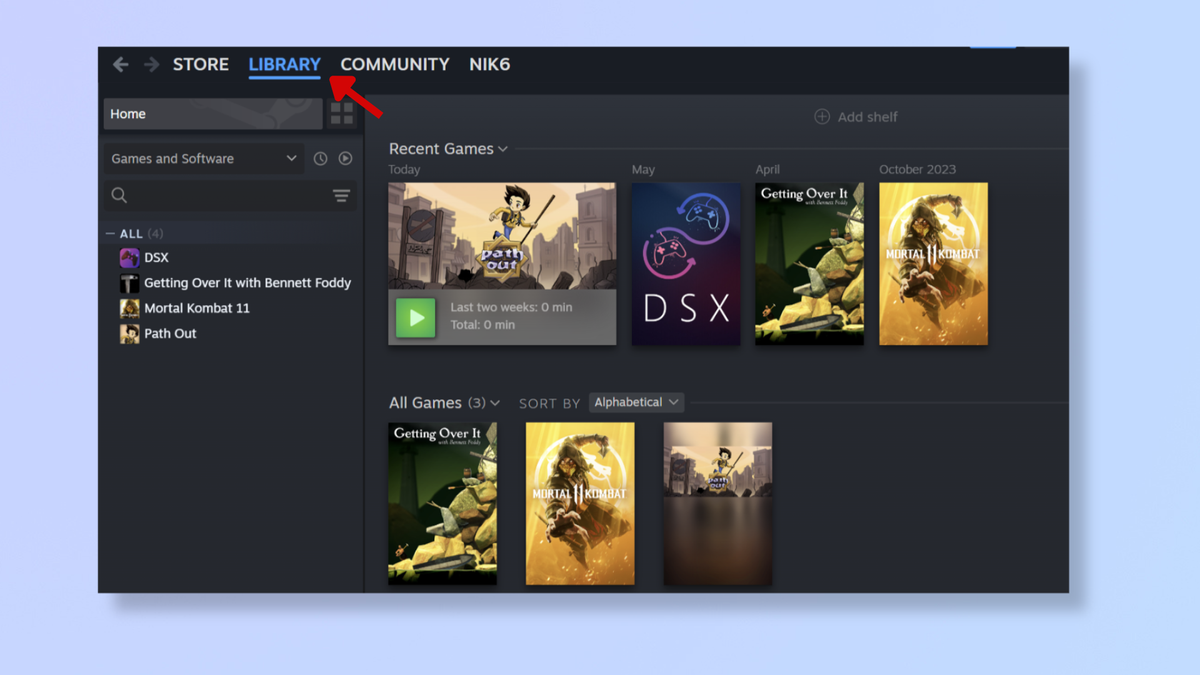
- Navigate to Your Library: Click on 'Library' at the top of the Steam window to view all your purchased and installed games.
- Locate the Game: Find the game you wish to uninstall. Games that are currently installed will typically appear in white text (or your chosen theme's default), while uninstalled games might be grayed out.
- Right-Click the Game: Right-click on the game's title in your library list. This will bring up a context menu.
- Select 'Manage' then 'Uninstall': Hover your mouse over the 'Manage' option, and a sub-menu will appear. From this sub-menu, select 'Uninstall'.
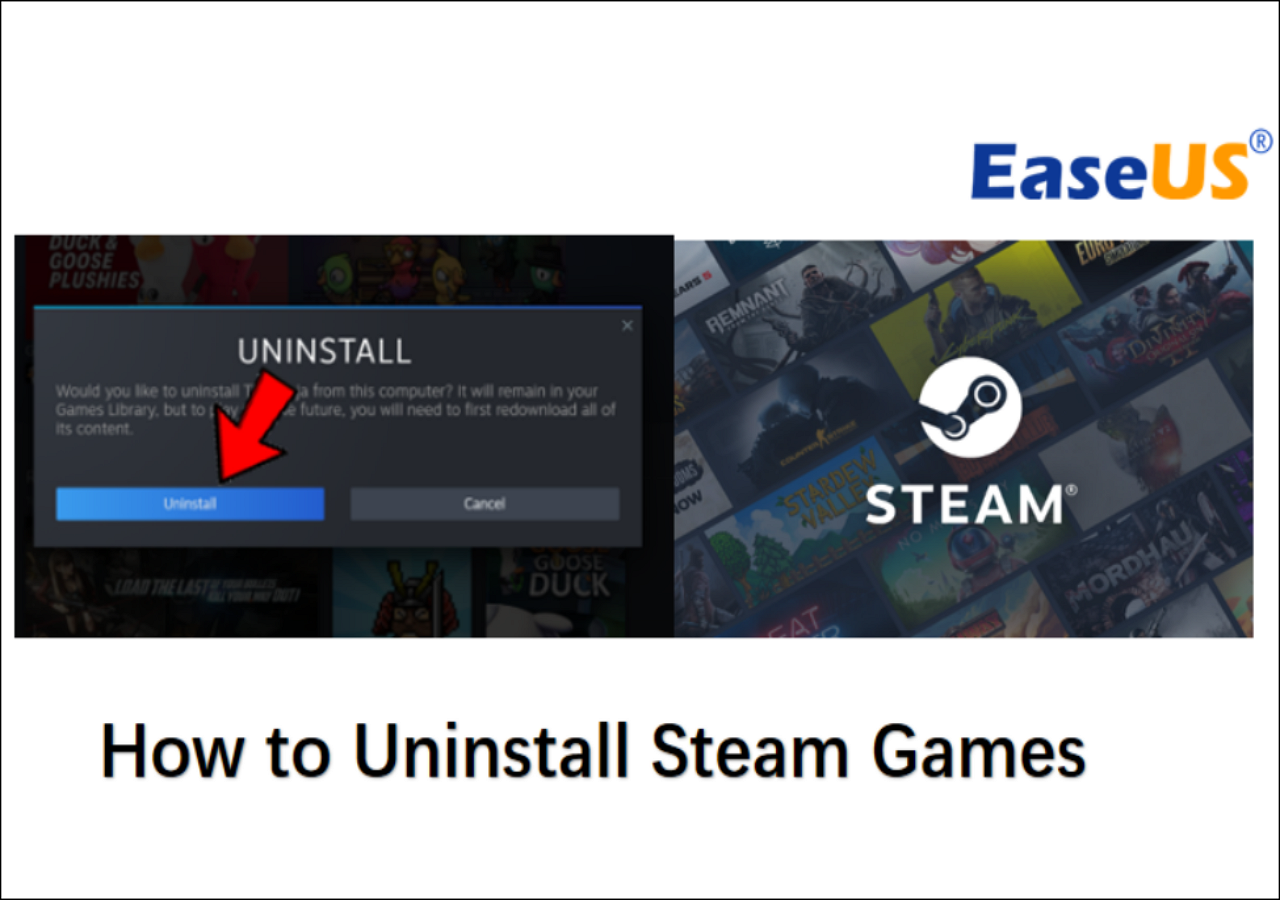
- Confirm Uninstallation: A dialog box will pop up asking, "Are you sure you want to uninstall [Game Name]?" Click 'Uninstall' again to confirm.
- Monitor the Process: Steam will then proceed to remove the game files from your computer. Depending on the game's size and your system's speed, this can take anywhere from a few seconds to several minutes.
After the uninstallation is complete, the game will still be listed in your library but will appear as 'Uninstalled', ready for you to reinstall it anytime you want. This method is the safest and most recommended way to remove games from your PC while keeping your account intact.
What Happens When You Uninstall a Game on Steam?
When you uninstall a game on Steam, several things occur, and understanding them helps in managing your expectations and data.
- Files Removed: The primary outcome is that all the core game files, executables, and associated data installed on your hard drive are deleted. This is where the immediate benefit of freeing up disk space comes from.
- Ownership Retained: Crucially, uninstalling a game does not remove it from your Steam account. You still own the game, and it remains listed in your Steam library. You can reinstall it at any point in the future without having to purchase it again.
- Cloud Saves (Usually) Intact: For the vast majority of modern Steam games, your save files and game progress are backed up to Steam Cloud. This means even after uninstalling, your progress is safe on Valve's servers and will be restored if you reinstall the game later, even on a different computer. However, always double-check if a game supports Steam Cloud before uninstalling, especially for older or indie titles.
- Local Configuration Files: Some games might leave behind minor configuration files or cached data in your 'Documents' folder or other system directories. These are usually small and harmless but can be manually deleted if you're a meticulous cleaner.
Essentially, uninstalling is like putting a physical game disc back on the shelf; you still own it, but it's not currently in your console/PC. It's a quick and efficient way to manage your local storage without losing your hard-earned digital purchases.
Can You Permanently Delete a Game from Your Steam Account?
Yes, you can permanently delete a game from your Steam account, but this is a much more significant and largely irreversible action compared to simply uninstalling. This process is generally reserved for situations where you truly never want to see a game in your library again, perhaps due to buyer's remorse, privacy concerns, or if a game was added to your account in error.
To permanently delete a game from your Steam account:
- Go to Steam Support: Open your web browser and navigate to the Steam Support website (help.steampowered.com).
- Log In: Log in with your Steam account credentials.
- Find the Game: Under the 'Games, Software, etc.' section, search for the specific game you wish to remove permanently.
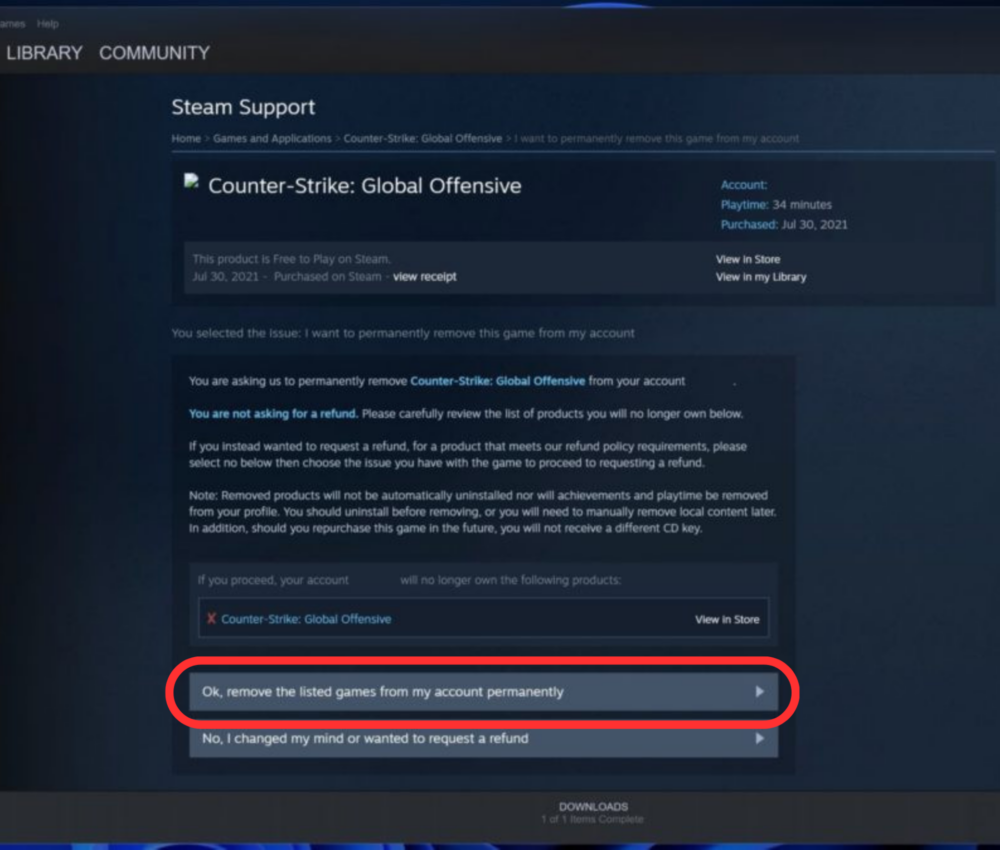
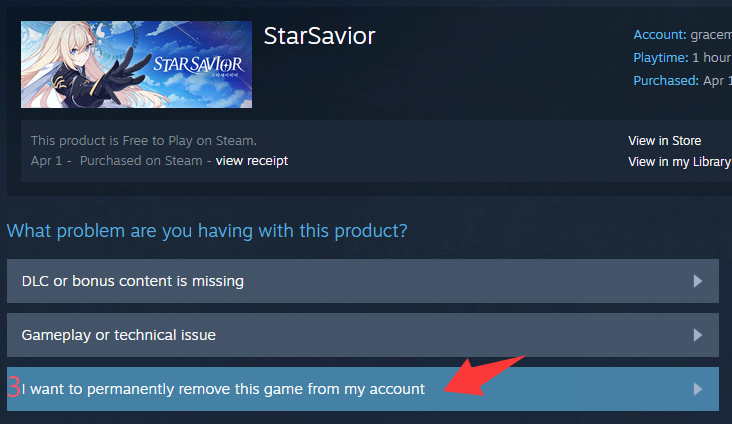
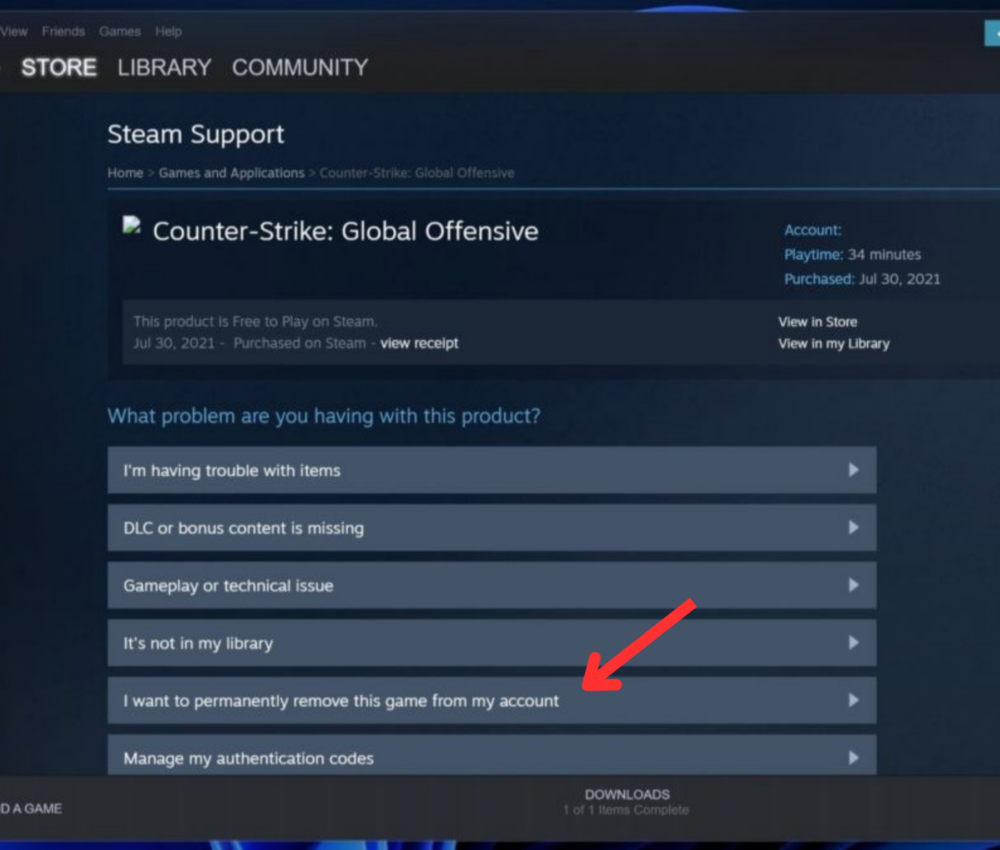
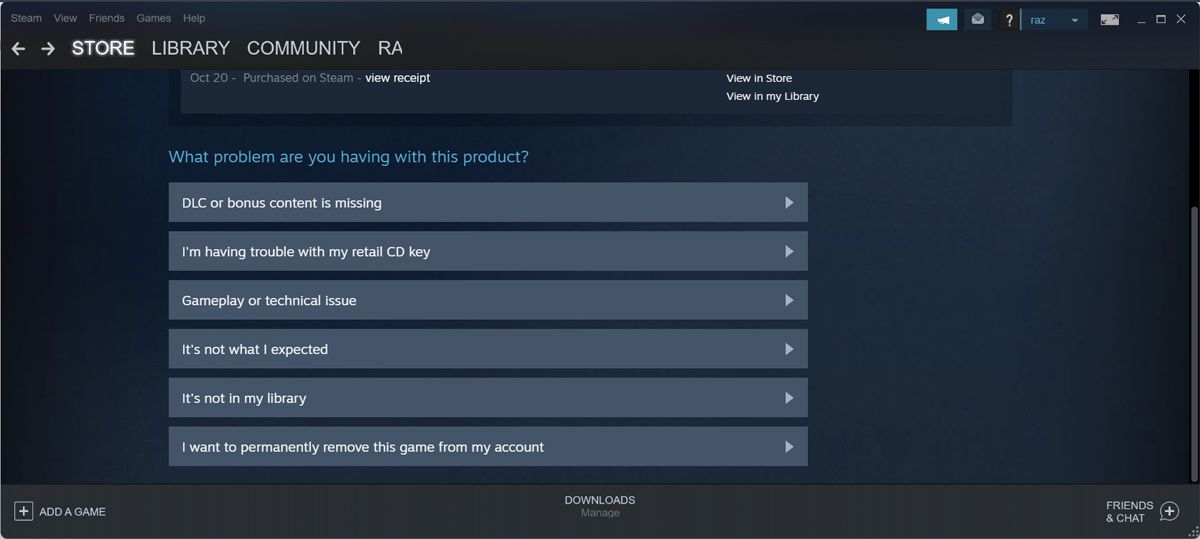
- Select 'I want to permanently remove this game from my account': Once you've selected the game, you'll see several options. Choose the one that indicates permanent removal.
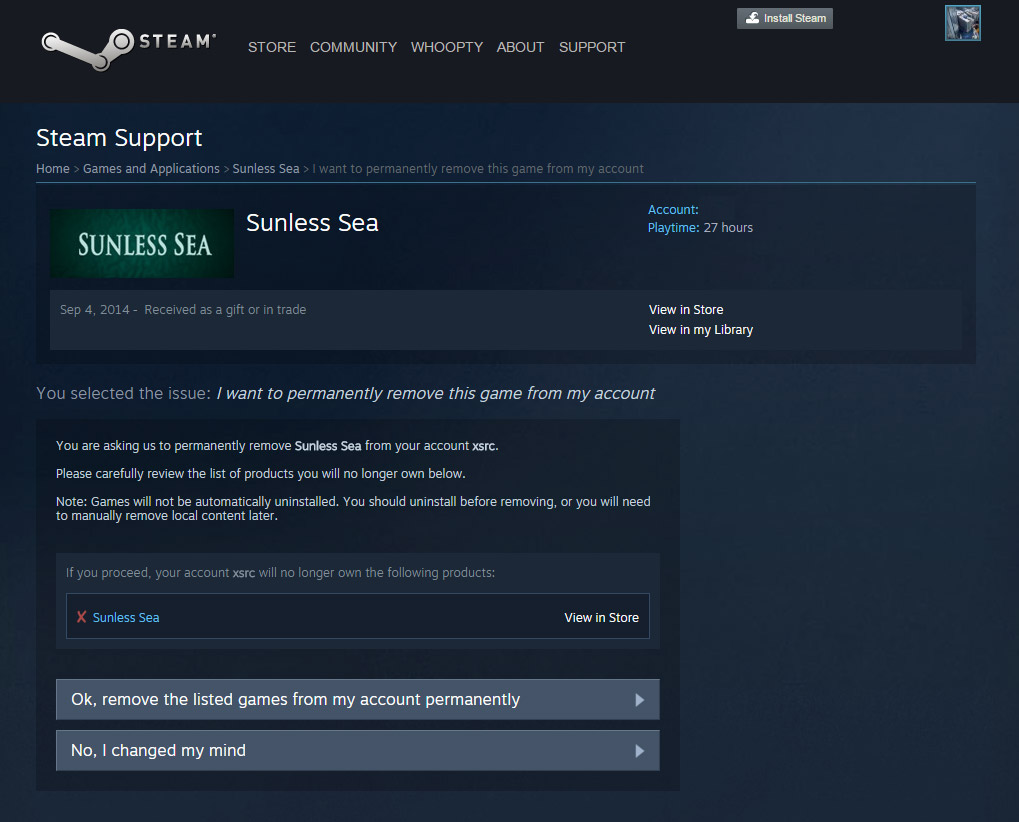
- Confirm Removal: Steam will present you with a final confirmation. Understand that this action is permanent and cannot be undone. You will lose all rights to the game, and it will no longer appear in your library. If you ever want to play it again, you will need to repurchase it.
It's important to reiterate that this is not the same as uninstalling. Uninstalling frees up disk space and keeps the game in your library; permanent removal revokes your license for the game entirely. Think carefully before taking this step, as there's no going back.
Why Would a Gamer Need to Remove Steam Games?
There are numerous compelling reasons why a modern gamer, especially those balancing gaming with a busy life, would need to remove Steam games. It’s not just about space; it’s about optimization and a better overall experience.
- Freeing Up Disk Space: This is the most common reason. Modern AAA titles can easily consume 100GB or more. With SSDs still relatively expensive for mass storage, clearing out old games is essential to make room for new releases or critical system updates. For many, a full drive means slower performance and frustration.
- Improving PC Performance: A hard drive that is too full can significantly slow down your computer. Freeing up space, particularly on your primary drive (often an SSD), can lead to faster boot times, quicker application loading, and smoother overall system operation. This is a huge win for performance optimization without a budget-busting hardware upgrade.
- Decluttering Your Library: Just like a physical bookshelf, a digital library can become overwhelming. Removing games you've finished, didn't enjoy, or simply won't play again makes your library more manageable and easier to navigate. This helps busy gamers quickly find the titles they want to jump into for their limited gaming time.
- Resolving Technical Issues: Sometimes, a game might be corrupted or cause system instability. A complete uninstall and fresh reinstallation can resolve persistent bugs or performance issues that other troubleshooting steps can't fix.
- Privacy and Data Concerns: In rarer cases, gamers might wish to permanently remove a game due to privacy concerns related to a developer, or perhaps because a game's content no longer aligns with their values.
- Digital Hygiene: For many, especially those in the 36-year-old average gamer demographic, maintaining a clean and efficient digital environment is a form of stress relief. It feels good to have a streamlined system that just works.
Ultimately, knowing how to remove Steam games empowers you to tailor your gaming experience to your current needs, balancing your love for games with the practical realities of managing digital resources.
How Does Removing Games Impact My Save Files and Achievements?
Understanding the impact of removing games on your save files and achievements is crucial for any gamer concerned about their progress. The good news is, for the most part, your achievements and saves are safe.
- Achievements: Your Steam achievements are tied directly to your Steam account, not the game's installation files. Once you earn an achievement, it is permanently recorded on your profile. Uninstalling or even permanently removing a game will NOT cause you to lose any achievements you've unlocked. They will remain proudly displayed on your Steam profile.
- Save Files (Steam Cloud): The vast majority of modern Steam games utilize Steam Cloud Sync. This feature automatically uploads your game save files to Valve's servers. When you uninstall a game that supports Steam Cloud, your local save files are typically removed with the game, but the cloud copy remains secure. If you reinstall the game later, Steam will download your latest cloud save, allowing you to pick up exactly where you left off. This is a massive convenience for busy gamers.
- Save Files (Local Only): Some older titles, indie games, or games that do not implement Steam Cloud Sync might store save files exclusively on your local hard drive. In these rare cases, uninstalling the game would likely delete those local save files. If you plan to uninstall such a game and value your progress, it's highly recommended to manually back up these save files. They are often found in your 'Documents' folder (e.g., 'My Games' subfolder), 'AppData' folder, or within the game's installation directory. Always check the PCGamingWiki or a quick online search for specific game save locations if unsure.
For most contemporary games, especially popular social or cozy games, you can uninstall with peace of mind regarding your progress. It's a testament to how platforms like Steam are designed to support the modern gamer's dynamic lifestyle.
Is There a Way to Reinstall a Removed Steam Game Later?
Yes, absolutely! The beauty of the Steam platform is that uninstalling a game from your PC does not revoke your ownership. It simply clears the local files. You can reinstall any game that remains in your Steam library at any time.
Here's how to do it:
- Open Your Steam Client: Launch the application.
- Go to Your Library: Click on 'Library'.
- Find the Game: Locate the game you wish to reinstall. Uninstalled games typically appear grayed out in your list.
- Right-Click and Select 'Install': Right-click on the grayed-out game. From the context menu, select 'Install'.
- Choose Installation Location (Optional): Steam will prompt you to choose an installation drive and possibly create a desktop shortcut. Make your selections and click 'Next'.
- Begin Installation: Steam will then begin downloading and installing the game. The time this takes will depend on the game's size and your internet connection speed.
This seamless reinstallation process is a major benefit for gamers who frequently manage their storage. It allows you to cycle games in and out of your active rotation without any permanent loss of access, making it perfect for those who enjoy revisiting titles or need to make space for a new co-op experience with friends.
What Are the Best Practices for Managing a Large Steam Library?
Managing a large Steam library efficiently is key for a seamless gaming experience in 2026. With thousands of games available and new ones dropping constantly, even a seasoned gamer can feel overwhelmed. Here are some best practices tailored for busy US gamers:
- Regularly Cull Unplayed Games: Set a schedule – perhaps once a month or every quarter – to review your library. If you haven't played a game in a year and have no immediate plans to, consider uninstalling it. This frees up space and reduces visual clutter.
- Utilize Steam's Categorization: Steam allows you to create custom categories (e.g., 'Favorites', 'Co-op Games', 'Finished', 'Backlog', 'VR Experiments'). Categorize your games to quickly find what you want to play based on mood or social plans. This is especially helpful for balancing gaming with life, as you can quickly find a suitable game for a short session.
- Move Games Between Drives: If you have multiple drives (e.g., a fast SSD for current games and a larger HDD for less-frequently played ones), use Steam's built-in feature to move games. Right-click a game > Properties > Local Files > Move Install Folder. This is a lifesaver for optimizing performance on your primary drive without completely removing games.
- Be Selective with Purchases: With so many games and sales, it's easy to accumulate titles you'll never play. Before buying, ask yourself if you truly have the time or interest, especially if you're balancing a job and family. Value for money means playing the games you buy.
- Leverage Wishlists: Use the Steam Wishlist to track games you're interested in. Steam will notify you during sales, helping you make budget-friendly choices and avoid impulse buys that bloat your library.
- Consider Free-to-Play Games Wisely: While F2P games offer great value, they can also quickly take up space. Be mindful of how many F2P titles you install, especially those you only dabble in occasionally.
By adopting these practices, you can transform your Steam library from a source of stress into a perfectly curated collection that supports your gaming habits and lifestyle.
Can I Move Steam Games Instead of Deleting Them?
Yes, absolutely! Moving Steam games to a different drive is an excellent alternative to deleting them, especially if you have multiple storage devices (e.g., a smaller, faster SSD for your operating system and frequently played games, and a larger HDD for your extensive back catalog or less-demanding titles). This method allows you to free up space on a particular drive without losing access to the game. It's a smart strategy for performance optimization and efficient storage management.
Here's how to move a Steam game to another drive:
- Create a New Steam Library Folder: First, ensure you have a Steam Library folder set up on your target drive. Go to Steam > Settings > Storage. Here, you'll see a list of your current Steam Library folders. Click the '+' icon to add a new folder on your desired drive.
- Select the Game to Move: Go back to your Steam Library, right-click on the game you want to move.
- Access Local Files Properties: Select 'Properties' from the context menu.
- Choose 'Move Install Folder': In the 'Properties' window, navigate to the 'Local Files' tab. You'll see an option labeled 'Move Install Folder...' Click this button.
- Select New Location: A new dialog box will appear, allowing you to choose one of your existing Steam Library folders on another drive. Select your preferred new location from the dropdown menu.
- Initiate Move: Click 'Move' to start the process. Steam will then transfer all the game files from the original drive to the new one. This can take some time depending on the game's size and the speed of your drives.
This feature is a game-changer for balancing performance and storage, allowing you to keep all your beloved titles accessible without constantly uninstalling and reinstalling. It's perfectly suited for the average gamer managing varied gaming interests.
What If I Have Trouble Uninstalling a Stubborn Steam Game?
Sometimes, a Steam game might refuse to uninstall cleanly, leaving behind stubborn files or error messages. This can be frustrating, but there are several troubleshooting steps you can take to tackle these tricky situations.
Here's a breakdown of what to do:
- Restart Your PC: Often, the simplest solution works best. A quick restart can clear temporary files and processes that might be locking game files, allowing for a successful uninstall afterward.
- Try Uninstalling via Windows/macOS Settings: Instead of through Steam, try uninstalling the game directly from your operating system's app management.
- Windows: Go to 'Settings' > 'Apps' > 'Apps & features'. Find the game in the list, click on it, and select 'Uninstall'.
- macOS: Open 'Finder', go to 'Applications', drag the game application to the 'Trash', then empty the 'Trash'.
- Verify Integrity of Game Files: If the game's installation is corrupted, it might interfere with uninstallation. In Steam, right-click the game > 'Properties' > 'Local Files' > 'Verify integrity of game files...'. This might fix issues and allow a standard uninstall.
- Manually Delete Game Folder (Advanced): As a last resort, you can manually delete the game's folder. Navigate to your Steam installation directory (e.g.,
C:Program Files (x86)Steamsteamappscommon). Find the problematic game's folder and delete it. After deletion, restart Steam and try to uninstall the game again (it might appear as if it's still installed, but Steam will detect missing files). This often cleans up residual entries. - Use a Third-Party Uninstaller: For extremely stubborn cases, specialized third-party uninstaller software can sometimes forcibly remove game files and registry entries. Use these with caution and only from reputable sources.
- Contact Steam Support: If all else fails, Steam Support is there to help. Provide them with detailed information about the issue and the steps you've already taken. They can offer specific solutions or tools to resolve the problem.
Dealing with stubborn uninstalls is a pain point for many, but these steps should cover almost every scenario, helping you get your PC clean and ready for your next gaming session.
Managing your Steam library, while sometimes feeling like another chore, is an essential part of being a smart, efficient gamer in 2026. By understanding how to remove Steam games—whether temporarily or permanently—and implementing best practices for organization, you not only free up valuable disk space and improve your PC's performance but also reclaim your digital space. This helps you focus on what truly matters: the relaxation, fun, and social connections that gaming brings into your busy life.
Remember, your gaming setup should be a source of joy, not frustration. Taking a few minutes to declutter and optimize can make all the difference, ensuring you're always ready for that quick session or an epic journey. What's your biggest gaming challenge when it comes to managing your library? Comment below and share your tips with the community!
**FAQ Section**
What is the easiest way to uninstall a Steam game?
The easiest way to uninstall a Steam game is to open your Steam client, navigate to your Library, right-click on the game, select 'Manage', and then click 'Uninstall'. Confirm the action, and Steam will remove the game files from your PC, freeing up space while keeping your ownership intact for future reinstallation.
Do I lose my game saves if I uninstall a Steam game?
No, you generally do not lose your game saves if you uninstall a Steam game. Most modern games utilize Steam Cloud Sync, which backs up your save files to Valve's servers. Your progress will be restored if you reinstall the game later. For older games without cloud support, consider manually backing up your saves.
Can I remove a game from my Steam library permanently?
Yes, you can permanently remove a game from your Steam library through Steam Support. This action revokes your license and completely deletes the game from your account, making it irreversible. You would need to repurchase the game to play it again, so use this option carefully.
How do I know if a game supports Steam Cloud for saves?
You can check if a game supports Steam Cloud by right-clicking it in your Steam Library, selecting 'Properties', and looking under the 'General' tab. There should be a checkbox or indicator for 'Steam Cloud'. If checked, your saves are typically backed up automatically.
Will removing a game speed up my computer?
Removing large games, especially from your primary drive (like an SSD), can significantly speed up your computer. Freeing up disk space prevents your drive from becoming too full, which can lead to slower boot times, application loading, and overall system sluggishness. It's a simple way to optimize performance.
Is there a way to hide games instead of uninstalling them?
Yes, Steam allows you to hide games in your library without uninstalling them. Right-click on the game in your library, select 'Manage', and then 'Hide this game'. The game will move to a 'Hidden' category, decluttering your main view without removing any files from your PC.
Easy Steam game uninstallation, permanent removal options, freeing up disk space, improving PC performance, managing game library efficiently, protecting save files, reinstallation guide.
35


How To Permanently Remove Game From Steam Account Easy Guide YouTube . Remove Games From Steam Library FDOMF . How To Uninstall Delete Games All At Once On STEAM Easy Tutorial . How To Uninstall Steam Game On PC Mac Best Tutorial YouTube . How To Delete Steam Games Quick Easy Guide V4 460px Delete Steam Games Step 4


How To Uninstall Steam Games YouTube . How To Uninstall Steam From Your Mac And More Remove Steam Games From Account 1 . How To Uninstall Steam Games Completely 3 Methods How To Uninstall Steam Games Thumbnail . Steam March 2026 Client Update Adds Hardware Specs To User Reviews Steam Client Mar 2026 . How To Uninstall Steam Games Quickly And Easily How To Uninstall Steam Games
:max_bytes(150000):strip_icc()/steam-uninstall-ba72a88d2b3f4d319fbe9e7263bd88e9.png)


How To Uninstall Steam Games Steam Uninstall . How To Delete Steam Games Quick Easy Guide V4 460px Delete Steam Games Step 18 . How To Remove Or Hide A Game From Steam Steam7 . How To Delete Steam Games Quick Easy Guide V4 460px Delete Steam Games Step 17 . Remove Games From Steam Quick Easy Guide How To Remove Games From Steam Account A Step By Step Guide


Uninstall Steam And Steam Games On Mac Step By Step Guide Image. How To Delete Steam Games Quick Easy Guide V4 460px Delete Steam Games Step 8 . How To Delete Steam Games Quick Easy Guide V4 460px Delete Steam Games Step 7 . How To Fully Uninstall Games From Steam Android Authority 54 1000w 850h . January 2026 S Top Selling New Steam Games Revealed 08418405 04a2 47eb B48b 1500x843

Remove Games From Steam Quick Easy Guide 6 Steps To Remove A Game From Your Steam Account 1024x536 . How To Uninstall Steam Games With 3 Methods On Windows . How To Delete Steam Games Quick Easy Guide V4 460px Delete Steam Games Step 6 . How To Return A Game On Steam Complete 2026 Refund Guide Technerdo Image. You Can Now Permanently Remove Games From Your Steam How To Remove Or Deletegame



How To Uninstall Steam Games And Reinstall Later Steam Games Manually . You Can Now Permanently Remove Games From Your Steam How To Remove Or Sddefault . Steam Next Fest February 2026 The 22 Best Game Demos The Best Steam Next Fest Demos 2026 The Punished Backlog Order 2 768x415 . How To Delete Steam Games Quick Easy Guide V4 460px Delete Steam Games Step 5 . How To Fully Uninstall Games From Steam Android Authority 53 1000w 850h



How To Uninstall Steam Games In 5 Easy Steps Softonic Steam Uninstall 2 1846x822 M35eef . Steam Sale 2026 Key Dates You Need To Know LevelUpTalk Steam Sale Schedule 2026 08 27 2025 7c35051e 2c22 4093 96f1. How To Uninstall A Game On Steam TechRadar 1200 80 . You Can Now Permanently Remove Games From Your Steam How To Remove Or Remove Game 1 . Steam Now Lets You Remove Games From Your Account For Good Tnw Blurple